Using JAVASCRIPT (this) Keyword in a Function

My name is Simon Ugorji and I aspire to become a computer scientist.
I officially started my web development journey in the year 2020 as a backend web Developer and I have enjoyed the experience so far.
I spend my day coding, learning new topics, and figuring out the next article to share with the world.
I will show you 2 Basic ways on how you can use (this) keyword to work with Form Inputs.
THIS KEYWORD
The JavaScript this keyword refers to the object it belongs to.
- In a method, this refers to the owner object.
- Alone, this refers to the global object.
- In a function, this refers to the global object.
- In a function, in strict mode, this is undefined.
- In an event, this refers to the element that received the event.
- Methods like call(), and apply() can refer this to any object.
Supposing you have an input Element below
<form>
    <input name="foo" id="inp_foo" type="text">
</form>
And you wish to retrieve any data stored within its attributes, say Value, I'll show you 2 ways to go about this.
FIRST METHOD
First, we directly use the oninput event listener and pass (this) keyword as a parameter to our function
<form>
    <input oninput="myfunc(this)" name="foo" id="inp_foo" type="text">
</form>
Here's our JavaScript function
<script>
function myfunc(x = "this") {
    var dataValue = x.value;
    console.log(dataValue);
}
</script>
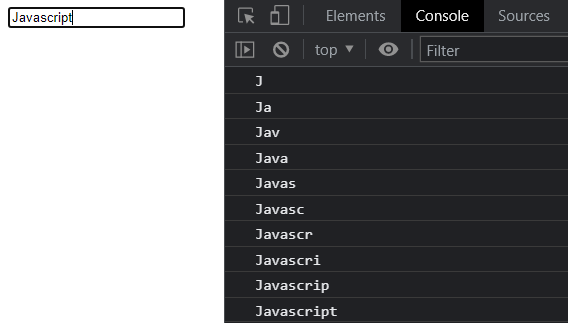
If you open the file from your browser and try to Input some value, it gets logged right in your browser's console.
This is because we have created a function myfunc() that requires the current element as an argument and we have used (this) keyword to refer to the current element.
So, as we type in a value for the Input, it will be logged directly to the browser's console.
This will be the output
SECOND METHOD
Instead of exposing what happens when our Input Element receives a value to an End user, we can use a HTML DOM addEventListener() Method.
The element.addEventListener() method attaches an event handler to an element, so if you're using document.addEventListener() method, you will be attaching the event handler to the HTML document (page).
We will bind our element to this method and attach an event listener that will fire up when the Target Event occurs.
<script>
function myfunc(x = "this") {
    var dataValue = x.value;
    console.log(dataValue);
}
document.addEventListener('DOMContentLoaded', (event) => {
    //Add an Input Event
    document.querySelector('#inp_foo').addEventListener('input', function() {
        myfunc(this);
    });
})
</script>
- Here we have used the method document.addEventListener('DOMContentLoaded') to make sure that the HTML Document (page) is fully loaded before any other function executes.
- We have also used the method document.querySelector('#inp_foo').addEventListener('input') to attach an input Event Listener to the Element with the ID (inp_foo).
- So, the browser will keep listening or monitoring the Input Element till it receives a value and then executes any other codes inside the braces.
You can learn more about Event Listeners on W3Schools.
Where Can I Apply this ?
Well, that is totally left for you to decide.
Supposing you're building a questionnaire app, you would want to use an Event Listener to know if the answer supplied by the user is correct or wrong.
function checkAnswer(x = "this") {
    var answer = 25;
    var userAnswer = x.value;

   if(userAnswer.length >= 2){
        if(userAnswer != answer) {
            alert('You have provided an invalid Answer');
        }
    }
}
document.addEventListener('DOMContentLoaded', (event) => {
    //Add an Input Event
    document.querySelector('#inp_answer').addEventListener('input', function() {
        checkAnswer(this);
    });
})
Your HTML Form may look like this;
<form>
    <input id="inp_answer" type="number">
</form>
I am sure you will use a more secure and precise approach to validate user input. If you need help, I will be happy to lend a hand!
Keep Coding!
I am also sure that you enjoyed this post.
Feel free to drop a comment below if you find any part of this post Confusing!